

Your Emails Are in Microsoft 365. Your Files Are in OneDrive. So Why Does Microsoft Say Your Data Is Your Problem?
If you run your business on Microsoft 365 — email in Exchange Online, documents in SharePoint and OneDrive, chats in Teams — you probably feel reasonably secure about your data. It’s Microsoft. They have data centers everywhere. They have redundancy and uptime guarantees. Surely if something goes wrong, they’ll have a copy somewhere.
They will. Just not necessarily one they’ll give you.
This is one of the most common and most consequential misunderstandings about cloud services — and Microsoft isn’t alone in it. It’s how every major cloud platform works, including Google Workspace and Salesforce. Understanding it takes about five minutes. Not understanding it has cost some businesses everything.
What Microsoft Actually Promises You
Microsoft’s commitment to you as a Microsoft 365 customer is about availability, not backup. They promise the service will stay running. They maintain the infrastructure, the network, the physical data centers, the operating systems that run Exchange and SharePoint. They’re responsible for the platform.
Your data is different. Microsoft’s own service agreement states it plainly: “We recommend that you regularly back up your content and data that you store on the services or store using third-party apps and services.”
Read that again. Microsoft is recommending that you back up your data stored in Microsoft 365 — using something other than Microsoft 365.
This isn’t a loophole or fine print obscurity. It’s a documented framework called the Shared Responsibility Model, and it’s the foundational structure of how every major cloud service operates. Microsoft is responsible for keeping the lights on. You are responsible for your data. The model divides the security and protection obligations clearly between the vendor and the customer — and data protection sits squarely on the customer side of the line.
But What About the Recycle Bin? And Version History?
This is where it gets confusing, because Microsoft 365 does have some built-in recovery features. They’re just not backup.
When you delete a file from OneDrive, it goes to the Recycle Bin and stays there for 93 days before permanent deletion. If someone accidentally deletes a folder, you can recover it during that window. That’s genuinely useful — for accidental deletion, within that time window, for files that were in OneDrive to begin with.
Version history lets you roll back a document to an earlier saved state. Again, useful. But version history has a limited window depending on your license, and it requires that the document still exists — if the file is deleted, the version history goes with it.
Litigation holds preserve specific mailbox content for legal purposes. They are explicitly not a recovery tool. According to backup providers who have analyzed the process, recovering a single email through a litigation hold requires 8 to 10 administrative steps and is built for compliance preservation, not day-to-day data recovery.
None of these features protect you against the scenarios where real data loss actually happens.
How Businesses Actually Lose Data in Microsoft 365
The scenarios that cause genuine, unrecoverable data loss in Microsoft 365 environments aren’t exotic. They’re ordinary.
Ransomware that syncs to the cloud. This is the one that catches most people off guard. Modern ransomware doesn’t just encrypt files on your local computer — it encrypts them while they’re actively syncing to OneDrive. The encrypted versions sync up, overwriting the clean versions. If your version history window has passed or is shorter than the attacker’s patience, you may have no clean version to restore. A 2025 analysis found ransomware attacks surged 126% in the first quarter of 2025 compared to the same period in 2024, with encrypted files overwriting cloud backups through automatic sync becoming a standard attack pattern.
Accidental bulk deletion. Someone with admin access runs a cleanup script, misconfigures a retention policy, or deletes a shared mailbox they thought was inactive. By the time the error is discovered, the 93-day recycle bin window may already be closing — or the data may have already been permanently purged based on retention settings. One documented case involved a company that accidentally deleted months of Teams chat history for tens of thousands of employees through a misconfigured retention policy. Microsoft couldn’t recover it because under the shared responsibility model, retention policy management was the customer’s responsibility.
A former employee deletes their data before leaving. A departing employee with access to shared folders, team channels, or project files deliberately cleans up “their” work before their last day. Depending on what they had access to and what permissions were in place, the deletions may only surface after the recycle bin window closes.
A compromised account deletes or corrupts data. If an attacker gains access to an account — through a phishing email, credential stuffing, or an MFA gap — they operate as that user. Data Loss Prevention rules and audit policies are designed to flag unusual external behavior, but attackers acting under valid credentials can move, delete, or corrupt data in ways that look like normal user activity. Native tools often can’t distinguish between the two.
In 2025, 30.2% of organizations reported losing data within Microsoft 365 — nearly double the rate from the previous year, according to industry research tracking SaaS data loss incidents. Separately, 87% of IT professionals surveyed in a 2025 global study reported experiencing SaaS data loss in 2024.
One Thing You Can Verify in the Next Ten Minutes
If you’re a Microsoft 365 admin or have access to someone who is, here’s a straightforward check: go to the Microsoft 365 Admin Center, navigate to Settings, and look for your organization’s retention policies. If your organization has never specifically configured retention policies, you are running on Microsoft’s defaults — which are designed for service continuity and basic compliance, not for your specific recovery requirements.
The second check: ask whoever manages your Microsoft 365 account whether your organization has a third-party backup solution for Microsoft 365 data. Not for your servers — specifically for Microsoft 365. Email, SharePoint, OneDrive, Teams. The honest answer in most small and mid-sized offices is no.
That doesn’t mean disaster is imminent. It means that if the wrong scenario plays out, your recovery options are limited to what Microsoft’s native tools can provide — which may be less than you’d assumed.
What Real Microsoft 365 Backup Looks Like
A proper backup solution for Microsoft 365 pulls copies of your data — email, SharePoint sites, OneDrive files, Teams data — into storage that lives outside Microsoft’s infrastructure entirely. It runs on its own schedule, maintains its own retention history, and can restore data at a granular level: a single deleted email, a specific folder as it existed on a specific date, an entire mailbox from three months ago.
Critically, that storage should be immutable — meaning once data is written to it, neither ransomware nor an admin error nor an attacker with valid credentials can delete or overwrite it. This is the architectural piece that makes the backup meaningful rather than theoretical. If your backup lives in the same logical environment as your primary data, a sophisticated attack can reach both.
Solutions like Veeam Backup for Microsoft 365, Acronis Cyber Protect, and Druva are purpose-built for this problem. They exist specifically because the major cloud providers themselves — Microsoft, Google, Salesforce — recommend that customers use third-party tools for this layer of protection.
If you’re not sure whether your Microsoft 365 data is protected in a meaningful way, that’s a reasonable question to bring to whoever manages your IT environment. And if the answer is uncertain — or if “whoever manages your IT environment” is a loose concept at your organization — that conversation is one worth having sooner rather than later.
Related Email Security Guide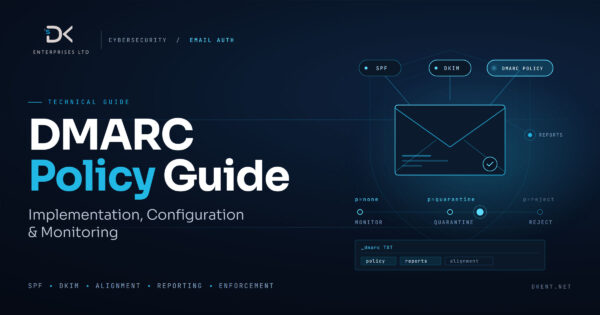
If email protection is part of your Microsoft 365 risk review, we also recommend reading our detailed guide to DMARC implementation, configuration, and monitoring. It explains how DMARC works with SPF and DKIM, how to move from monitoring to enforcement, and what to verify before publishing a stricter policy.