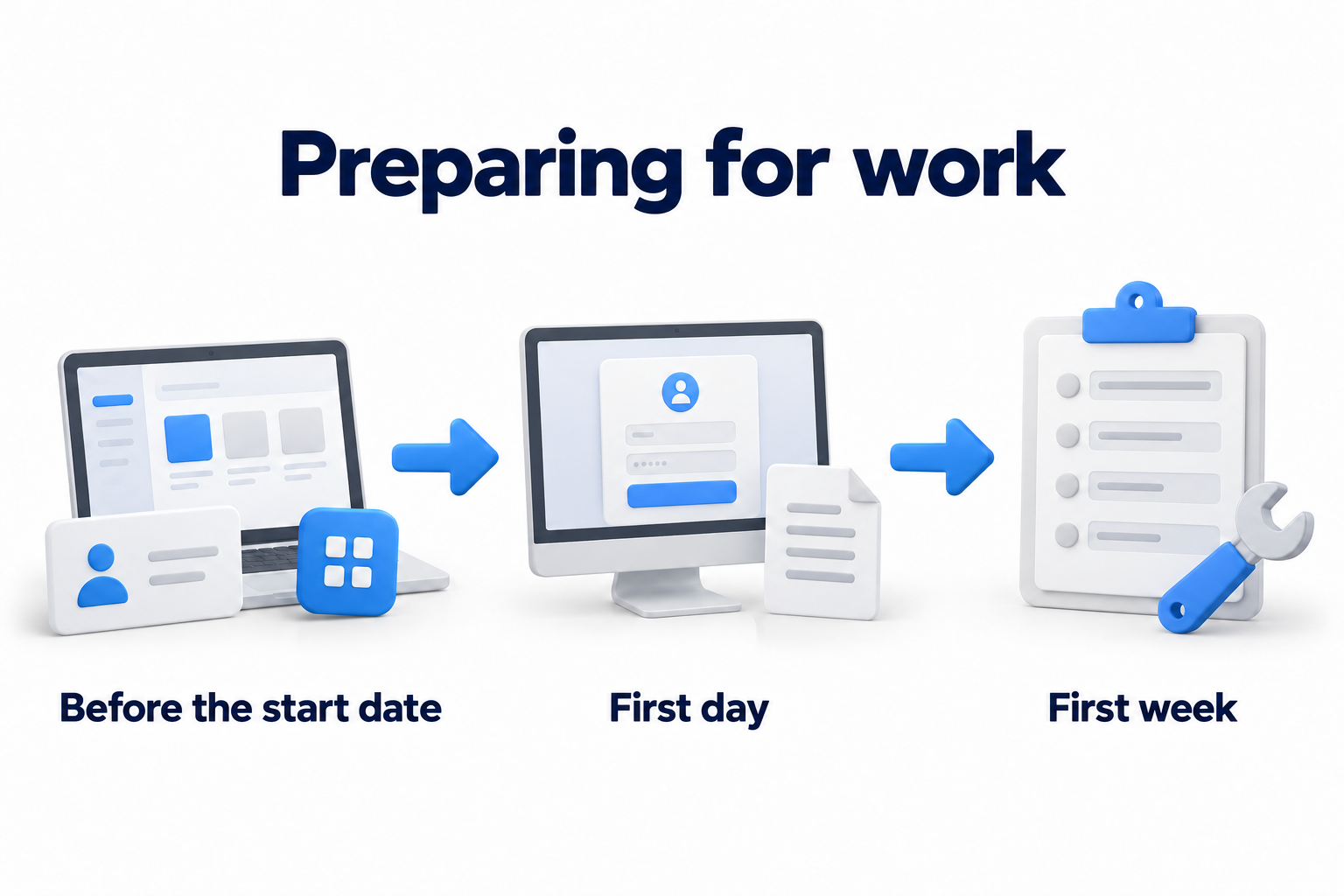
On the first day, an employee needs a working computer, access to the right systems and a clear way to get help. IT onboarding covers issuing equipment, setting up accounts and testing work tools. Its outcome is verifiable: the employee signs in and completes the initial tasks for the role.
This checklist helps HR, the manager and IT coordinate preparation across three stages: before the start date, on the first day and during the first week. Employment paperwork, an introduction to company culture and further development remain part of the broader onboarding process.
Coordinate preparation and assign owners
Collect the role and start date details
Start with one request for the new employee. Include their name, position, manager, start date and work location. Specify whether the arrangement is onsite, remote or hybrid. Add the required applications, access, equipment and a contact method available before the first sign in.
The manager should name the work tasks rather than simply request the same access as a colleague. If the role has specific industry or local requirements, refer them to the owner of the relevant rules. Do not include tax, medical or other personnel information in the IT request without a business need.
Divide tasks among HR, the manager, IT and the employee
- HR confirms the hire and start date, provides the initial details and communicates changes.
- The manager defines the work tools and approves access to the department's resources.
- IT prepares the device, accounts and applications, checks settings and records the result.
- The employee completes the first sign in, tests the tools and reports obstacles.
In a small company, one person may fill several roles. Still name one owner for each task. If a decision depends on another department, record who will make it and by when.
Set deadlines and readiness criteria
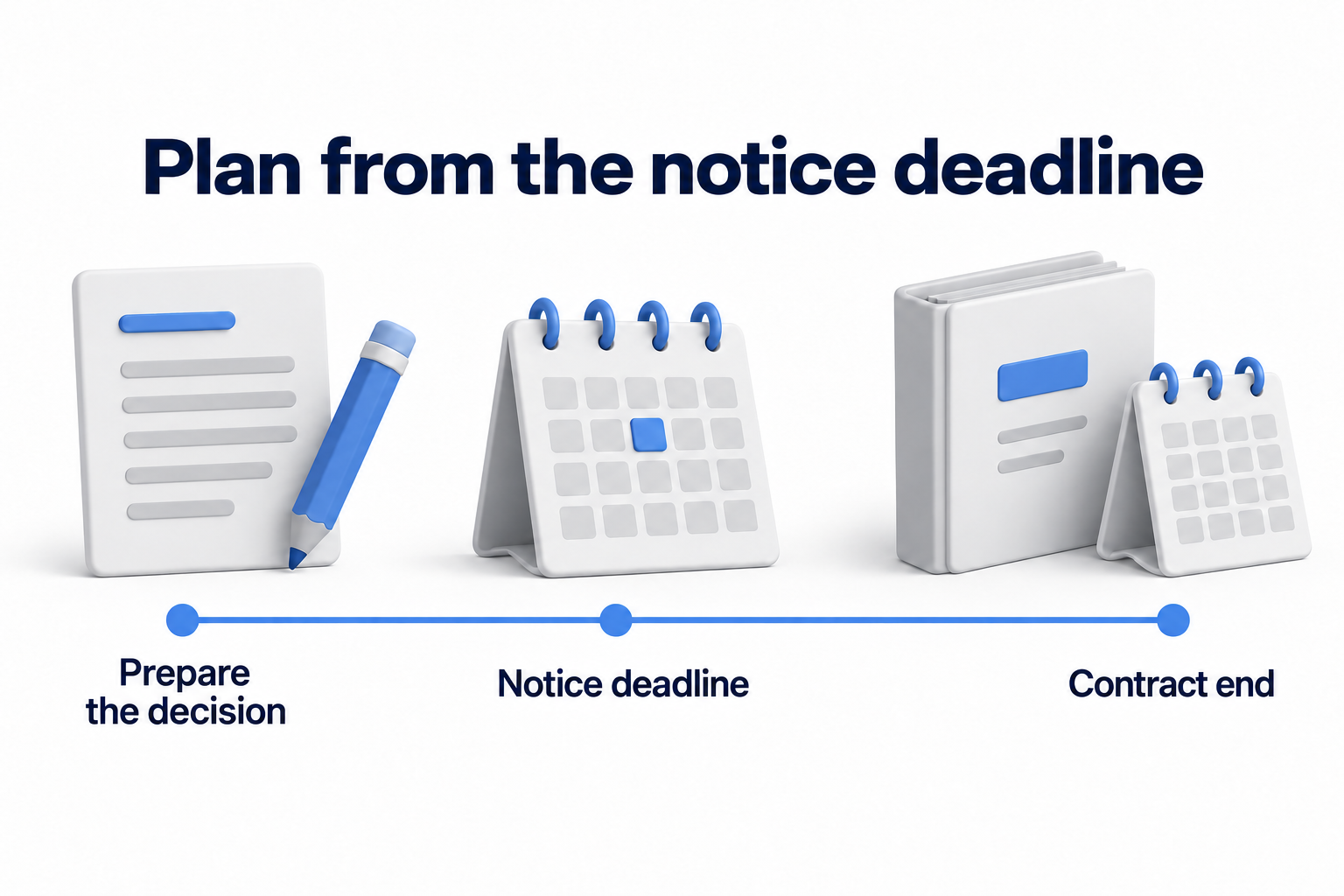
Plan backward from the first working day. Allow time to obtain equipment, deliver it, purchase licenses and approve permissions. Give each task a deadline and identify its dependencies.
Have the tools needed for initial work ready by the start date. Check the first sign in and registration of a multifactor authentication (MFA) method with the employee. Creating an account alone does not replace this check.
Track preparation in one checklist
Create a separate checklist for each new hire. Keep tasks, decisions and test results in it. Task owners maintain a shared log. The employee receives a copy of the checklist and instructions through an accessible channel before the first corporate sign in.
Record the task, owner and test result
Copy the template below into a working spreadsheet. Replace role names with people and stage names in the deadline column with dates. Complete approvals under current company rules. Use clear status values: not started, in progress, awaiting a decision, complete and not applicable. The verification column contains readiness criteria. After testing, replace them with the actual result or a link to the record.
Preparation template for one new employee
|
Stage |
Task |
Owner |
Approval |
Deadline |
Status |
Test evidence |
Obstacle and escalation |
|---|---|---|---|---|---|---|---|
|
Before the start date |
Confirm the role, start date and work arrangement |
HR |
Manager |
Before the start date |
Not started |
HR confirmed the details and the manager listed the required tools |
Complete if delayed |
|
Before the start date |
Allocate the equipment kit |
IT |
Manager |
Before the start date |
Not started |
IT recorded the kit contents and device identifier |
Complete if delayed |
|
Before the start date |
Check device settings and protection |
IT |
Confirm |
Before the start date |
Not started |
IT checked the required settings |
Complete if delayed |
|
Before the start date |
Create accounts and assign licenses |
IT |
Confirm |
Before the start date |
Not started |
IT checked accounts, applications and license assignments |
Complete if delayed |
|
Before the start date |
Prepare permissions for the role |
IT |
Resource owner |
Before the start date |
Not started |
The resource owner approved the required access level |
Complete if delayed |
|
Before the start date |
Prepare instructions and a support contact |
IT |
Confirm |
Before the start date |
Not started |
The employee can obtain instructions without a work account |
Complete if delayed |
|
Before the start date |
Confirm delivery for a remote hire |
IT |
Confirm |
Before the start date |
Not started |
The employee confirmed receipt of the kit |
Complete if delayed |
|
First day |
Check the device and first sign in |
IT |
Confirm |
First day |
Not started |
The employee turned on the device and signed in to the work environment |
Complete if delayed |
|
First day |
Check the approved MFA method |
IT |
Confirm |
First day |
Not started |
The employee signed in with the required verification |
Complete if delayed |
|
First day |
Check email, files and the role's application |
Employee |
Manager |
First day |
Not started |
The employee completed trial work actions |
Complete if delayed |
|
First day |
Explain the rules and how to get help |
IT |
Confirm |
First day |
Not started |
The employee knows the support contact and how to report a problem |
Complete if delayed |
|
First week |
Resolve missing access and tools |
IT |
Manager |
First week |
Not started |
The employee repeated the actions after the fix |
Complete if delayed |
|
First week |
Review temporary and unnecessary permissions |
IT |
Resource owner |
First week |
Not started |
The resource owner confirmed the final permissions |
Complete if delayed |
|
First week |
Check introductory training status |
Manager |
Confirm |
First week |
Not started |
The owner recorded the result or the remaining training deadline |
Complete if delayed |
|
First week |
Confirm equipment issue and complete acceptance |
Manager |
IT and employee |
First week |
Not started |
Participants confirmed readiness and assigned owners to remaining tasks |
Complete if delayed |
For verification, record the test result, equipment issue record or ticket number. If there is a delay, record the obstacle, next assignee, resolution deadline and escalation contact. Do not put passwords, temporary secrets or recovery codes in the shared checklist.
Adapt the checklist to the role and work arrangement
Mark items as mandatory, conditional or not applicable. For example, a sales employee may need CRM and business telephony. A finance specialist needs approved permissions in the finance system. The manager confirms the application list.
Add a printer, separate phone, mobile device or extra monitors when the role needs them. For a remote employee, include delivery and a connection check. For a hybrid employee, test work in both locations.
Prepare devices, accounts and access before the start date
Allocate the kit and record its issue
Check the condition of the computer, charger and required peripherals. Make sure the kit suits the work tasks. Record the recipient, serial number or internal identifier, work location and handover date.
Update the device assignment in the company's existing register. The employee confirms receipt when the kit is issued or delivered. Use that record during final acceptance. There is no need for another register for the same device.
Check computer settings and protection
Apply the current company settings and check their status:
- The operating system and work applications have the required updates.
- The management system can see the device, if the company uses one.
- The security tool works and reports its status to the management console, if the company uses one.
- Disk encryption is active where company rules require it.
- The employee can save work files in an approved location.
- Current backup rules cover the required work data.
NIST recommends that small businesses update software, limit data access to business needs and protect portable devices with encryption. When preparing for a new hire, check these measures under your company's rules.
Prepare accounts, licenses and permissions for the role
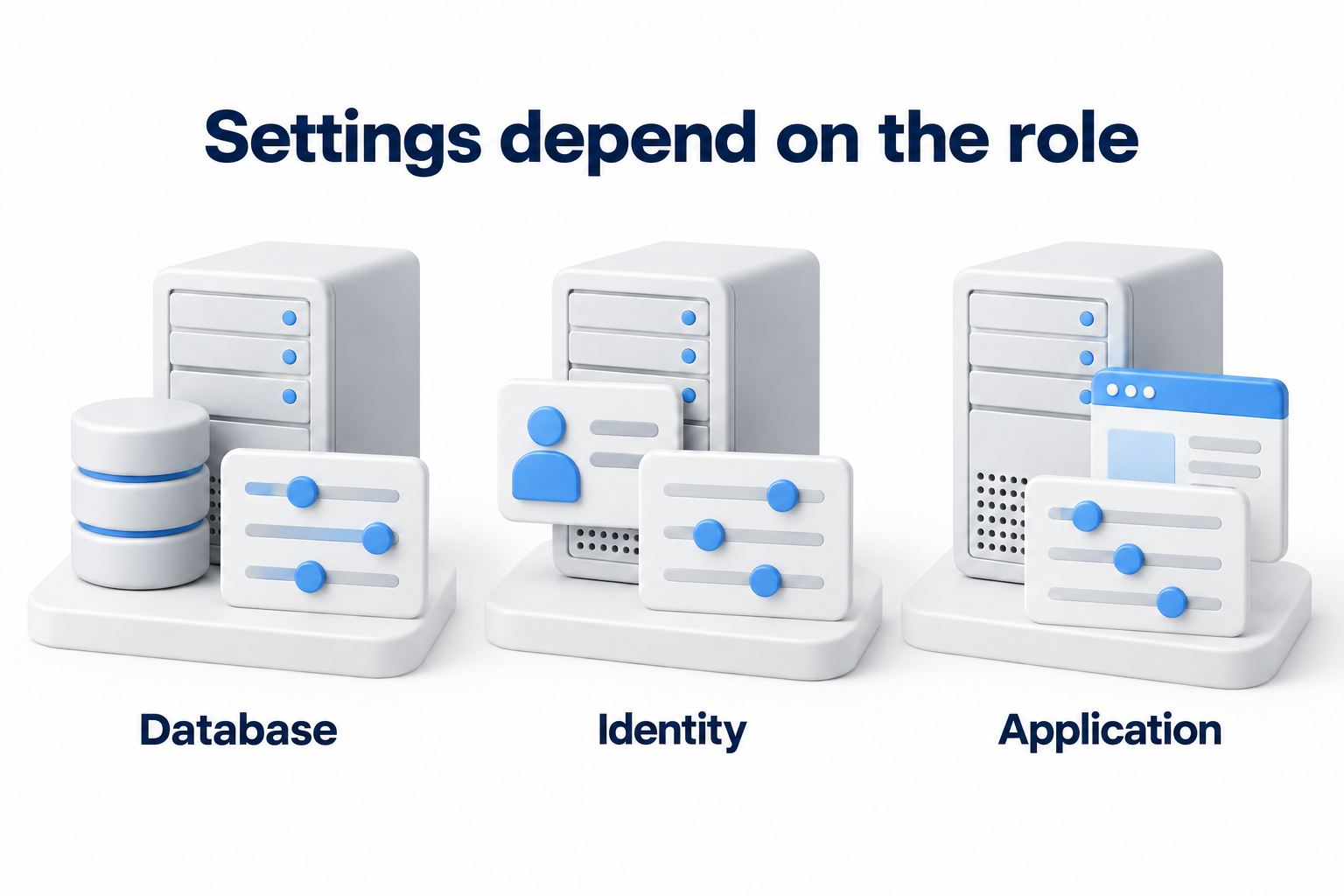
Create a named work account. Assign the required applications and licenses. Approve access to folders, groups, shared email resources and communication channels. Record the required permission level for each resource.
If the company uses Microsoft 365, check user creation and license assignment as separate tasks. An account without the required assignment does not yet confirm access to email and work applications.
Grant permissions for a specific task. Do not copy a colleague's entire permission set or add administrative privileges in case of future requests. The resource owner must approve additional permissions.
Prepare the first sign in and check the setup
IT checks application installation, license assignments and access settings through approved management tools. IT then prepares instructions for the employee: where to sign in, how to obtain initial access and whom to notify about an error.
IT chooses the initial sign in method under company rules. It may use a temporary password or a supported passwordless method. Microsoft Entra, for example, provides a Temporary Access Pass for initial registration of authentication methods. IT must configure it.
Provide initial access through the approved method after verifying the recipient's identity. Prepare the MFA requirement and registration method in advance. The employee personally confirms registration and a successful sign in.
Account for remote work and personal devices
Check delivery and connections outside the office
Before shipping, confirm the address, kit contents and contact method for the recipient. Obtain confirmation after delivery. Agree on the time zone, initial connection time and an IT specialist available to the employee.
Check that the employee can connect to work resources from their work location. Configure VPN if the company uses it for that access. Do not add VPN to the checklist simply because the person works remotely.
When shipping equipment to another country, give the route and conditions to the person responsible for such shipments in advance. Confirm that the company permits shipping and using the device at the chosen location. Clarify restrictions before issuing the equipment.
Check permission to use a personal device
Before granting access, find out whether the company permits work from a personal device. If it does, check the device type, security requirements, management methods and rules for handling work data. Agree on these with the employee before connecting.
If the device is unsuitable or the company does not permit this option, arrange a corporate kit. Do not use a personal laptop without approval when delivery is delayed.
Test work with the employee on the first day
Complete the first sign in and MFA registration
Verify the employee's identity under the established procedure. Help them complete the first sign in and register an approved MFA method. If the process requires replacing a temporary password, the employee does that personally.
Test access to the work system with the required verification. Make sure the employee knows how to get help if they lose their authentication method. Record the test result in the checklist. Do not record the password, verification code or recovery code.
Test email, files and applications for the role
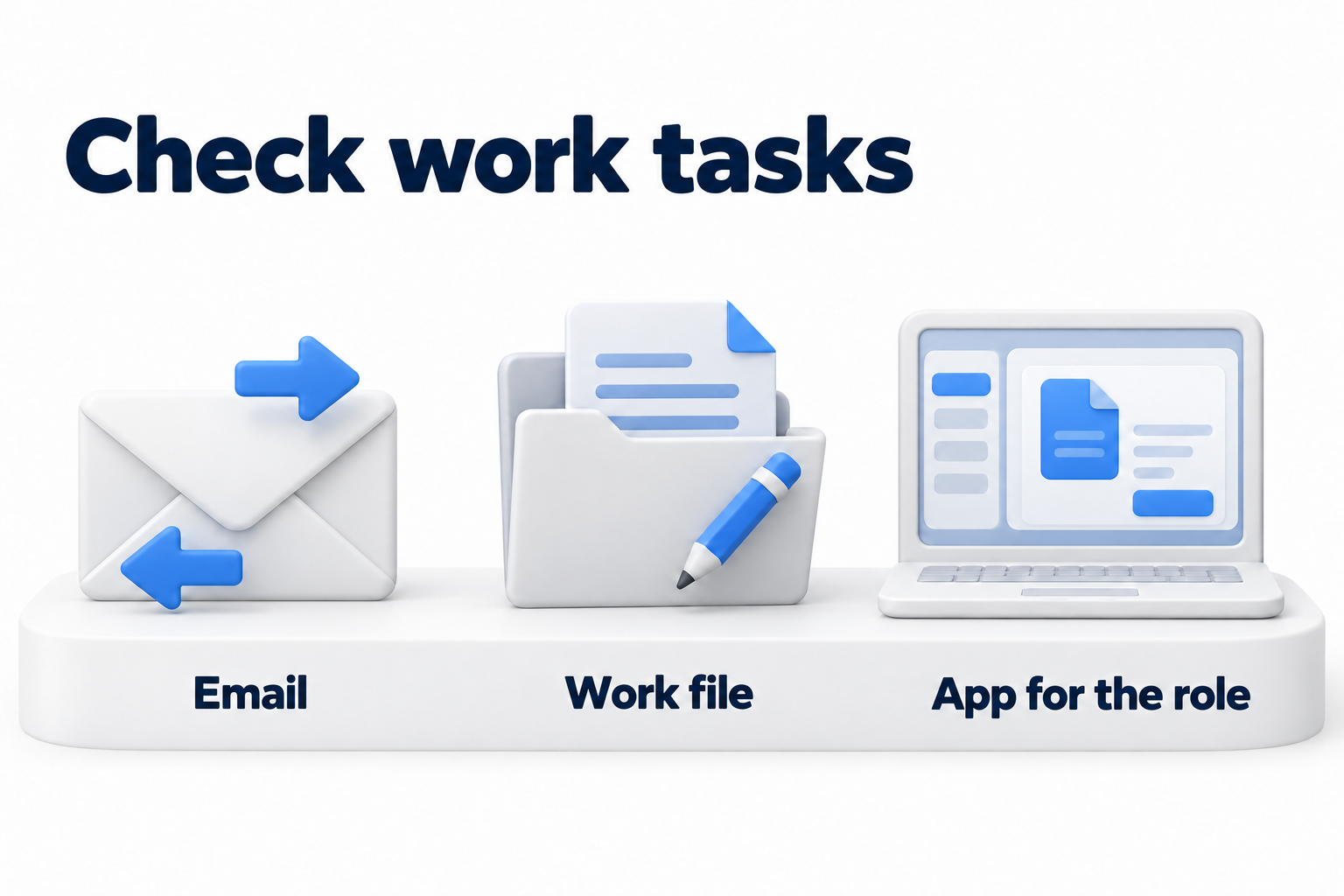
Ask the employee to complete short actions from their work:
- Send and receive a work email.
- Open the calendar and join the required meeting or chat.
- Open an authorized folder and perform the required action on a sample work file.
- Sign in to the role's main application and test the agreed functions.
- Test telephony, printing or a mobile device if the work requires them.
- Open the employee portal if the company uses it for this new hire.
Test the specific access level needed. Being able to open a file does not confirm permission to edit it. If a test fails, record the system, action and error. This helps IT address the cause.
Explain work rules and how to get help
Show where to store work files, which software to use and how to report suspicious emails or activity. Explain the established rules for the device and account. Schedule introductory security training and training on the required tools.
Give the employee a support contact, a way to submit a request and an urgent contact procedure. The contact must remain accessible even if work email or sign in fails. Ask the employee to include the device, application, error message and task they cannot complete when requesting help.
Close gaps and complete acceptance in the first week
Review missing and unnecessary permissions
Discuss initial work tasks with the employee. Find out what was missing: software, access, equipment or instructions. Assign an owner and deadline to each obstacle. After fixing it, repeat the check with the employee.
Compare final permissions with the approved role. Remove temporary and unnecessary permissions after confirmation from the resource owner. If a task remains open, record its work impact and who will make the next decision.
Confirm equipment issue, training and work readiness
Return to the same checklist. The employee confirms receipt of the kit and that the tools work. IT records technical test results and the employee's confirmation that they have reviewed the established rules. The manager confirms that the new hire can perform initial tasks.
Check training status. If the program continues beyond the first week, record the remaining sessions, deadline and owner. Keep the status open until training is complete. Give the employee the standard support route and retain owners for unresolved issues.
Handle delays and exceptions
Handle late requests and resource shortages
If the request arrives late, the manager defines the first day's tasks and IT lists the missing resources. First prepare what the employee needs to begin work. Agree on deadlines and the impact on the work plan for everything else.
If the computer is delayed, request an approved temporary kit. If a license is unavailable, arrange its purchase or an acceptable alternative. Record the restriction, approver, assignee and review date. Do not use someone else's account or install software without approval.
Help with sign in or MFA errors
The employee uses the backup contact and describes the problem. IT verifies their identity, follows the established support procedure and repeats the sign in test with them. Share secrets only through the method provided for that purpose.
Do not disable general protection because of one failed sign in attempt. If the employee still cannot work, the manager defines acceptable tasks while IT records the obstacle and next contact time.
Update the plan when the date or role changes
HR communicates a start date change and the manager clarifies the new requirements. IT revises the preparation date, kit contents, licenses and permissions. Remove assignments that are no longer needed and confirm new ones before the relevant work begins.
If the hire is canceled, review accounts, access, licenses and equipment already shipped. Assign an owner for further action and follow the current deactivation procedure. Canceling a calendar date does not change system settings by itself.
Measure readiness and improve preparation
Track access, obstacles and preparation time
Choose metrics that reflect technical readiness:
- The share of employees with the required access at the chosen point. Divide the number of new hires with confirmed access to every mandatory system by the total number of new hires in the same period.
- Time to readiness. Define the starting point, such as the date of a complete request, and the endpoint when the employee confirms that mandatory tools work. Record readiness for the start of the first day separately.
- Unresolved obstacles in the first week. Record the cause, work impact, owner and resolution deadline for each.
Compare equivalent roles and conditions. If people wait for access approval, review how requests are handed over. If one application repeatedly causes errors, fix its preparation template. Set targets for your own process.
Use feedback to update the checklist
Ask the employee what prevented them from starting work, where instructions were missing and how they obtained help. Change preparation so these obstacles do not recur. Assign a checklist owner and update it when applications, roles or company rules change.
If the same requests recur with every hire, automate data handover and standard tasks. Retain permission approvals, result verification and an owner for exceptions.
Need help preparing work computers? Contact DKs Enterprises for help with work device installation and maintenance. Provide the start date, work tasks and required kit to discuss the scope of work.