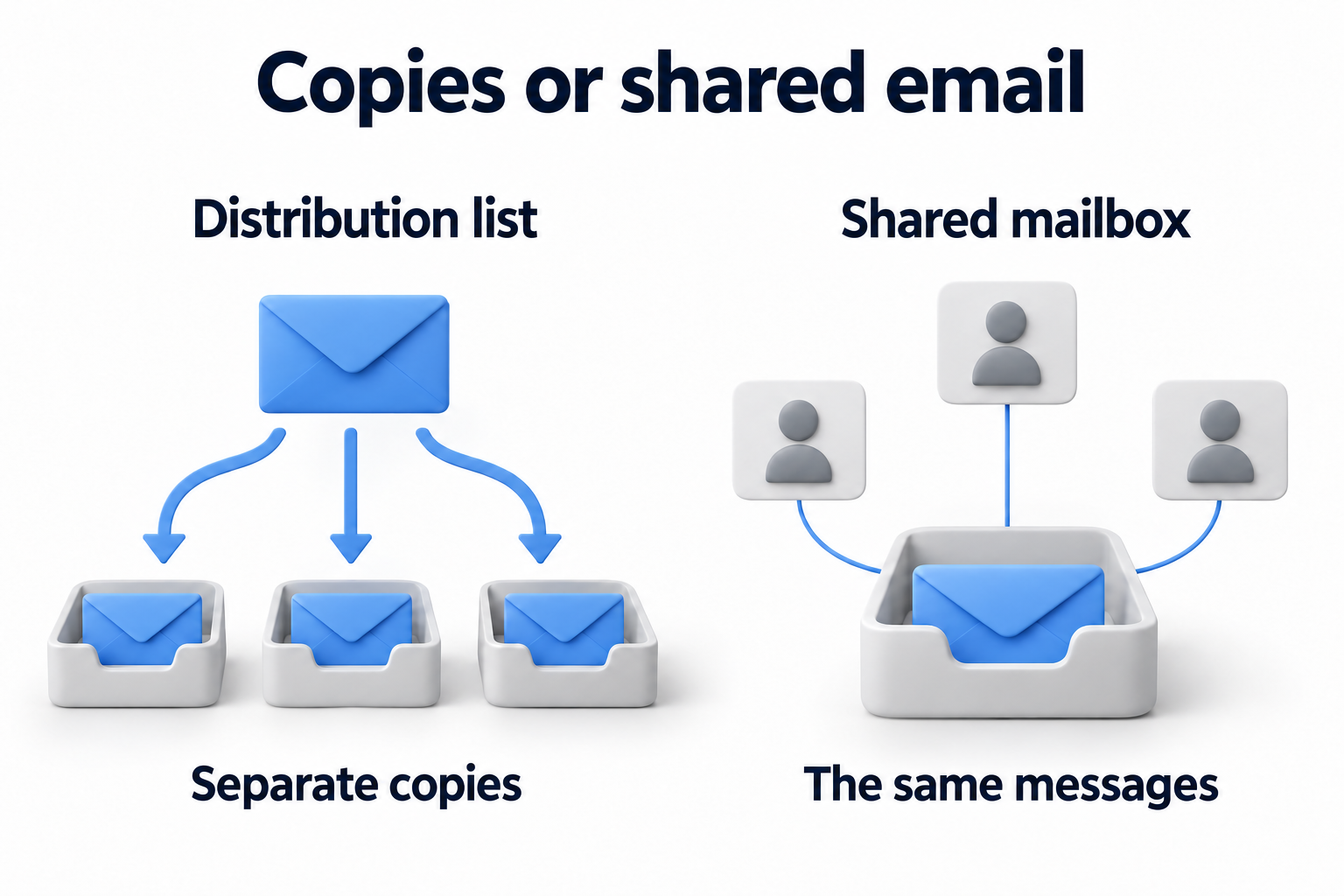
One address can support different ways of handling email. A distribution list delivers a message to its members; a shared mailbox gives the team access to the same mailbox. Choose based on what people need to do after receiving a message: read an announcement or handle an inquiry together.
Neither the name support@ nor the number of employees determines the right format. What matters is where the team will see the conversation, who will reply and what happens when the person responsible is away. Make these decisions before configuring the address.
This article covers distribution groups and shared mailboxes in Exchange Online within Microsoft 365. A personal Outlook contact list serves a different purpose. It helps an individual select recipients but does not replace a shared address managed by the company.
Compare delivery and shared history
A distribution list creates separate copies
The sender writes to the group address. The mail system delivers the message to members according to the configured settings. Each person reads, moves and deletes their own copy in their personal mailbox. The group has no shared folder showing the team the status of all those copies.
This works well for internal announcements. Receiving a copy, however, does not assign an owner. If two people decide to reply to a customer, the list itself will not prevent the second reply. If each waits for the other, the message may go unhandled.
A shared mailbox gives access to the same messages
The message arrives in a shared mailbox. Employees open it through their own work accounts with assigned permissions. They see messages in a shared folder and can continue a colleague's work. Deleting or moving a shared message affects the email available to the team, not just one person's copy.
Do not give everyone access to a shared mailbox through one password. Microsoft recommends blocking direct sign in to the associated account. Grant access to specific employees. When the team changes, you can remove one person's permissions without distributing a new shared secret.
|
Question |
Distribution list |
Shared mailbox |
|---|---|---|
|
Where does the message arrive? |
In members' separate mailboxes |
In one shared mailbox |
|
Where is shared incoming correspondence? |
There is no single group folder |
In the shared mailbox folders |
|
What does deletion do? |
The member deletes their own copy |
It changes the shared mailbox contents |
|
Can users reply from the shared address? |
Yes, with separately configured permissions |
Yes, with separately configured permissions |
|
Does it assign an owner? |
The list itself does not |
The mailbox itself does not |
|
Can the whole team see sent messages? |
A separate process for sharing copies is needed |
Verify that sent messages are saved in the shared folder |
|
Which task does it suit? |
Delivering information to a set of recipients |
Giving a team shared correspondence to handle |
Choose the format for the work scenario
Support and sales need coordinated replies
If another employee may need to continue an inquiry, a shared mailbox is usually a closer fit. The team needs the inquiry's history, and the manager needs to know who is handling it. Message visibility and responsibility remain separate, however. Agree on who takes new inquiries and how they hand them to a colleague.
For sales@, determine whether each salesperson should continue privately after the initial inquiry or the whole department should continue one conversation. In the first case, messages can go to members under the chosen rules. In the second, shared history, sending from the department address and a handover process matter more.
Announcements do not require a shared reply queue
A distribution list is often enough to notify employees about an event or policy change. Appoint an owner for membership and define who may send to the group address. If replies should not go to everyone, agree on a separate address for questions and test reply behavior in the mail client.
The possibility of a reply does not itself make a list unsuitable. The deciding factor is the need for joint handling. Do not apply the choice of an internal group to bulk marketing: its requirements and tools need separate consideration.
|
Scenario |
Initial choice |
What to confirm |
Who decides |
|---|---|---|---|
|
support@ with inquiries handed between colleagues |
Shared mailbox |
History, ownership, coverage and sending replies |
Support manager |
|
sales@ for shared departmental work |
Shared mailbox if shared correspondence is needed |
Who owns the customer and when the conversation is handed over |
Sales manager |
|
Internal announcements |
Distribution list |
Members, permitted senders and the questions address |
Internal communications owner |
|
A project team working with files and a calendar |
Consider a Microsoft 365 group |
Whether shared materials beyond email are needed |
Project owner |
Use both formats for different tasks
A shared support address and an internal announcements list can coexist. You do not need one type for the whole company. For each address, record its purpose, owner, members and expected reply route.
If one address forwards mail to another, test the result with a sample message. Nested groups and forwarding rules can create duplicate copies or an unexpected recipient set. Use these connections for a clear business reason rather than instead of assigning responsibility.
Separate reading, sending and administration
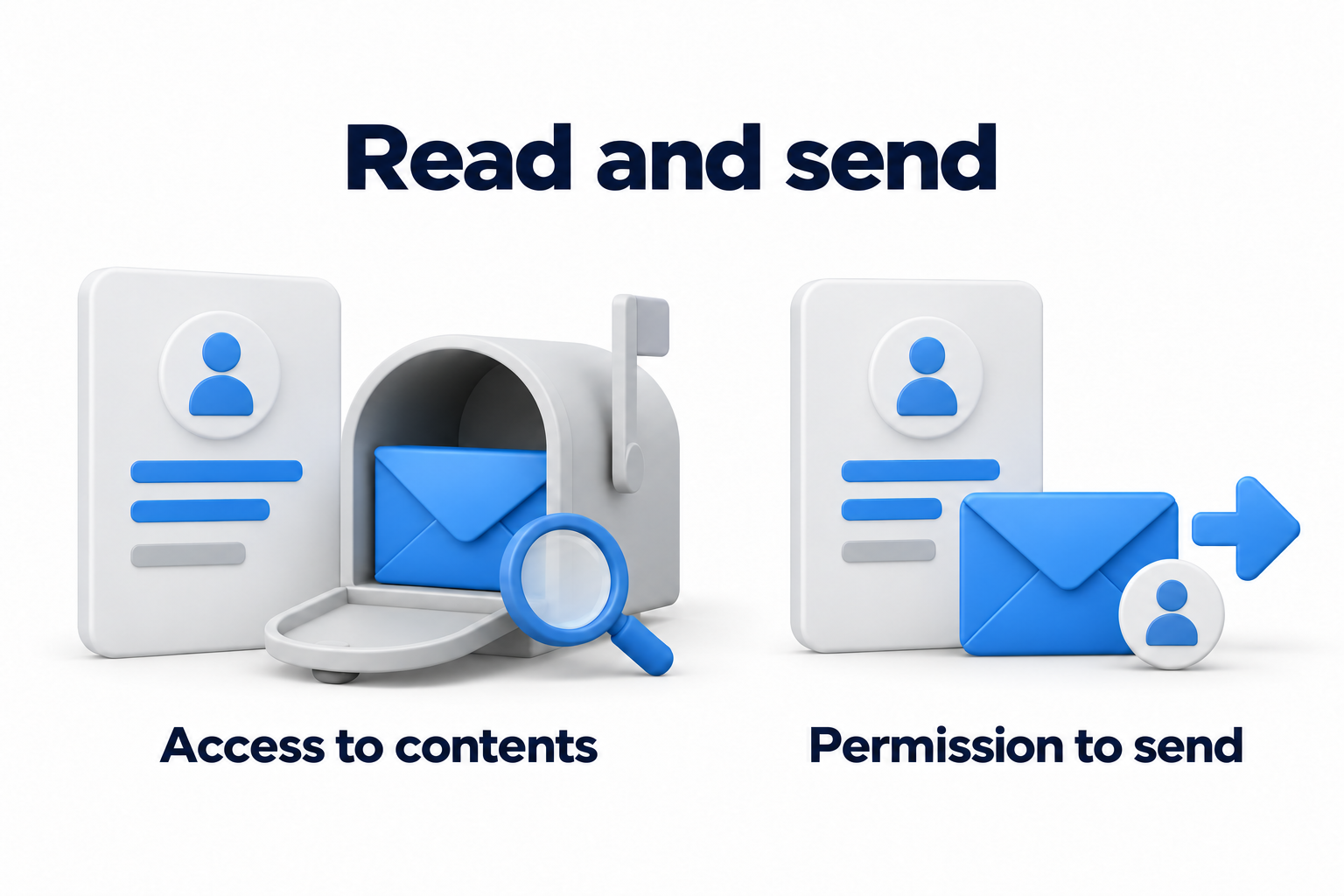
Access to messages is not permission to send
In Exchange Online, Full Access lets a user open a mailbox and work with its contents, but does not itself permit sending. Send As lets a user send from the mailbox or group address. Send on behalf shows a delegate sending on behalf of another address. Choose the required behavior, then verify it with the recipient.
A distribution list can also have separately assigned permission to send from its address. The rule "we need to reply from a shared address, so we need a shared mailbox" is therefore incomplete. Also check shared history, work allocation and conversation handover. These distinguish joint handling from delivery of copies.
Assign an owner and review membership
The address owner confirms its purpose and team membership. IT configures approved permissions, and members test the work outcome. Decide separately who changes membership, who covers an absent employee and when to review access.
Distinguish an external sender from an external team member. A customer may write to a shared address if those messages are permitted. This does not give the customer access to folders. Microsoft does not provide standard delegated access to a shared mailbox for people outside the organization. For collaboration with external participants, check another approach and its conditions.
Also review permitted senders for a distribution list. A customer's undelivered message does not yet prove that the object type is wrong. A setting may restrict external email. Check permissions and a test message before deciding whether another format is needed.
Check history and the handling process
Confirm where sent messages are saved
A shared inbox does not guarantee that every reply appears in the shared Sent Items folder. Microsoft describes a case where a delegate's sent message is saved in their personal mailbox. An administrator can configure a copy to be saved in the shared mailbox. Ask IT to verify the chosen sending method and where the copy actually goes.
Send a test reply and open the conversation as a second member. Check the sender address, Sent Items folder and the colleague's access to the reply. Do not accept the setup as complete simply because the first person sees the message in Outlook.
Do not mistake shared access for a ticketing system
A read message is not necessarily a handled message. Moving it to a folder does not always explain who will reply to the customer. A small team can adopt a simple assignment and handover process. It should show the owner, next action and inquiry status.
Agree on the meaning of each work status. For example, a message can be marked as in progress, handed to someone else or left awaiting the customer's reply. These name stages in your process; they do not imply that the shared mailbox assigns work automatically. Appoint someone to review messages without owners and check handovers during vacations.
If you need message assignment, response deadlines, internal notes and queue reports, evaluate a collaboration tool or ticketing system. Creating a shared mailbox does not add these functions. Define the required actions first, then compare the chosen tool's capabilities and terms. Do not treat one product's promises as properties of all Microsoft 365.
Agree on deletion and retention rules for important email. A member with broad permissions can change shared content. A shared mailbox does not replace a separate data protection and recovery decision. The article on Microsoft 365 data protection covers this issue.
Check licenses, capacity and mail clients
Under current Microsoft documentation, a shared mailbox can hold up to 50 GB without a separate license for the mailbox itself. People accessing it must have their own licensed Exchange Online mailboxes. A shared mailbox without a separate license therefore does not mean free corporate email for the entire team.
Greater capacity, archiving, legal hold and additional protection features may require other licenses. Check the required capabilities against the current plan before choosing. Do not assess cost only from the shared mailbox line item or apply one plan's conditions to every Microsoft 365 subscription.
Test how members work in a browser, desktop Outlook and the required mobile devices. Confirm that they can open the mailbox, see sent messages and select the sender address in the client they use. Current Microsoft documentation states that a shared mailbox supports no more than 25 users. For a larger team, evaluate another shared email model.
Briefly compare a Microsoft 365 group
A Microsoft 365 group supports collaboration through conversations, files and a calendar. A shared mailbox also provides a shared calendar, so needing a calendar alone does not make a group mandatory. If a project needs shared materials, other collaboration tools and participants outside the company, evaluate the group model.
A Microsoft 365 group and a shared mailbox are different objects, although both can provide access to shared email. Receiving group conversation copies in a personal mailbox depends on conversation subscriptions and settings. Group membership and receiving every copy are not the same action.
Office 365 Group is the former name of Microsoft 365 Group. The old name alone does not require a new address or a separate replacement project. Related features depend on subscriptions and settings. Do not make blanket claims that every group object needs a separate paid license or that all features are available without one.
Record the choice before changing a shared address
Confirm the current object type
Ask an administrator to check the address type in Microsoft 365 or Exchange. A folder in Outlook may suggest how it works, but is not a reliable register of all permissions and objects. Automatic folder mapping depends on how access was granted.
Record current recipients, nesting within other groups, permitted senders, addresses and forwarding rules. Check separately whether the team needs old correspondence. Copies members previously received in personal mailboxes do not automatically become the history of a new shared mailbox.
Test a format change through work actions
Replacing a list with a shared mailbox is not a simple folder toggle. Microsoft's official process creates a different object with the required settings and permissions. You cannot leave one email address on the old object while assigning it to the new one without a plan. Have IT agree on the sequence, preservation of required data and delivery checks.
- A message from a permitted internal or external sender follows the expected delivery route.
- A member reads the required messages through their own account.
- The reply arrives with the agreed sender display.
- A second member sees the reply where the team agreed to keep its history.
- Membership changes remove unnecessary access and retain coverage.
- The owner knows who takes new inquiries and who receives unresolved issues.
After testing, update the address description and team instructions. If an object using an existing address changed, check saved recipient addresses in clients and test sending again. Carry out detailed migration, administrative commands and environment configuration under a separate approved plan.
Retain the decision and owner
For announcements to a group, choose delivery of copies. For joint handling of correspondence, choose a shared mailbox and a team workflow. If email also needs shared files and project collaboration tools, consider a Microsoft 365 group. If you need assignees, deadlines and reports, evaluate an additional process or tool rather than just the mail object type.
Record the decision for each address: purpose, object type, owner, members, reply method and verified history. This list helps repeat the review after team changes without starting the choice again.
|
Decision field |
What to record |
|---|---|
|
Address purpose |
Announcements, shared correspondence or project work |
|
Owner |
Who approves membership and the workflow |
|
Object type |
Distribution list, shared mailbox or Microsoft 365 group |
|
Access and sending |
Who reads and sends, and how the reply appears |
|
History |
Where a second member sees received and sent messages |
|
Handling |
How work is assigned, handed over and checked for omissions |
|
Verification |
Who confirmed delivery, permissions and the clients in use |
|
Review |
Which team or task changes trigger another check |
Need help with shared email resources and permissions? Contact DKs Enterprises about Microsoft 365 and business email. Prepare a list of addresses, members and expected scenarios to discuss the setup.